Wright State is experiencing an issue with Webex audio settings in both Dayton and Lake Campus classrooms. Cisco is aware of the issue and working on a resolution. Below are quick instructions on how to manually correct the audio settings in your classroom.
What is the Issue?
When a Webex session is opened, the speakers installed in the classroom erroneously default to USB, superseding the standard audio settings and obstructing the sound.
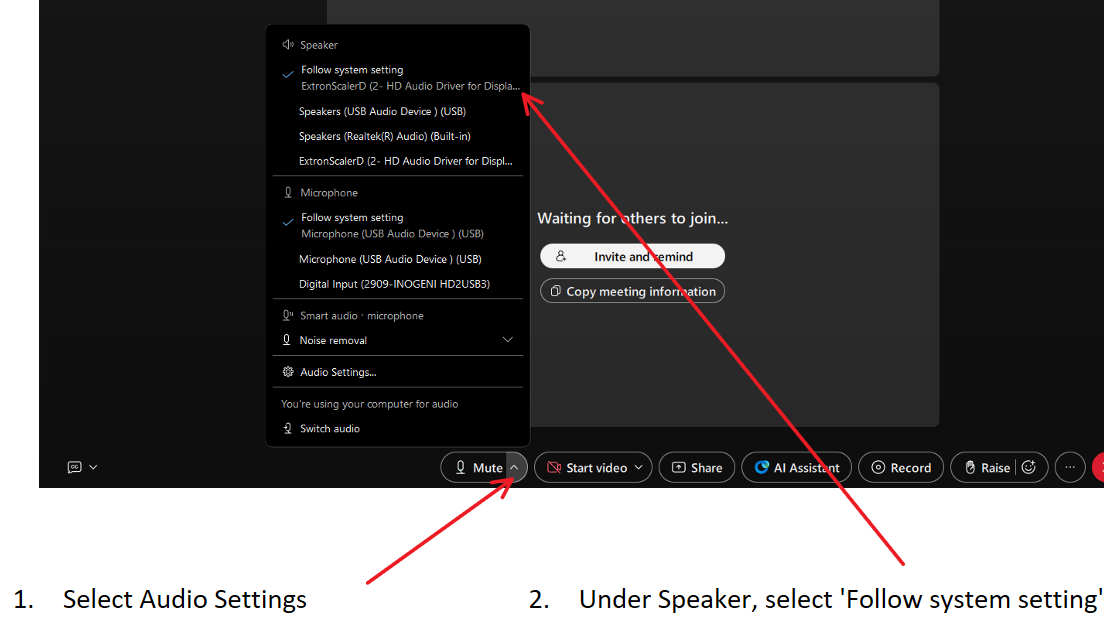
How to Change Webex Audio Settings
*Please note that you will have to manually change these settings in every classroom, and before every new Webex class session, until a permanent solution is released by Cisco.*
- Log in to the classroom computer, open Webex, and start your class normally
- Select 'Audio Settings' by clicking the up arrow next to the Mute button
- The selected speaker setting should be “Follow System Setting”: click that box.
- Resume session by clicking anywhere outside the menu and audible sound should return.
Report an Issue
If you have followed the steps above and are still experiencing audio issues when using Webex in your classroom, please use the wall-mounted phone in your classroom to contact the CaTS Help Desk at x4827 for immediate assistance, or email helpdesk@wright.edu.