CaTS has completed testing on the latest version of Microsoft Office, which offers features and necessary updates to performance and security. This new release is critical to ensure ongoing support for the University’s Windows computers.
What actions do I need to take on my University-Owned Windows computer?
On January 30, the Microsoft Office 2021 self-service installation became available In Software Center. CaTS recommends installing the latest version of Office at your earliest convenience.
For assistance using Software Center, please visit https://www.wright.edu/information-technology/software-center-self-service-software-installation-for-windows.
What if this is not completed?
Office 2019 (or any version prior) will not be supported by Microsoft or CaTS later this year. To ensure data security and consistent user experiences, if a computer has not been upgraded through Self-Service by the Fall Semester, automatic installations will begin without further notification.
What about CaTS-Supported Classrooms and Computer Labs?
CaTS Classroom Technology Support will be deploying Office 2021 this summer, and all spaces will be updated by the beginning of the Fall 2023 Semester.
What about University-Owned Mac (Apple) computers?
Office for Mac utilizes a different versioning method, with the change from Office 2019 to 2021 appearing seamless and within regular automatic updates. No action is required on these devices.
Questions?
If you have questions or concerns regarding this update, please contact the CaTS Help Desk at 937-775-4827, or email helpdesk@wright.edu.
CaTS Blog
Microsoft Office 2021 Now Available for University Windows Computers
Email Access Restored and Microsoft Teams Update
Earlier this morning, users were unable to log in to their Wright State email and other Office 365 services. This issue has been resolved. However, if you continue to experience problems accessing email or other Office 365 services, please call the Help Desk at 937-775-4827.
Additionally, for those individuals who use Microsoft Teams, a new feature has been added allowing your meeting participants to join by phone. You may receive an email from Microsoft with more information regarding this new service.
If you have any questions, please call the CaTS Help Desk at 937-775-4827, or email helpdesk@wright.edu.
Resolved: Issues With Office 365's Automatic Email Forwarding
Earlier issues with Office 365’s automatic email forwarding service have been resolved.
If you are still experiencing issues or have any questions, please contact the CaTS Help Desk at 937-775-4827, or email helpdesk@wright.edu.
Current Issues With Office 365's Automatic Email Forwarding
The CaTS Help Desk was recently notified by Microsoft of an issue with Office 365’s automatic email forwarding service. At this time, messages being forwarded from your Wright State email address to an external email address are being blocked and will not appear in your external email inbox. If you currently have email forwarding set up on your account, you will receive undeliverable error messages due to this issue. The original email will still be located in your Office 365 mailbox.
Microsoft is aware of this issue and is currently working on a solution. CaTS will notify the University once this issue has been resolved.
Integration Issues With Office 365 and Webex
At this time, the add-in to integrate Webex into the online version of Outlook (Office 365/Outlook On the Web) is currently not functioning. When attempting to schedule a Webex meeting using the add-in in Office 365, you will receive the following error message:
"Your current Webex site is not enabled for use with Microsoft Office 365. Contact your administrator for more information."
This error is due to Webex disabling the admin portal through which this service was originally integrated.
CaTS is working on resolving this issue, however due to the high volume of Webex meetings scheduled during this time, is cautious of making any major changes to the Webex platform that could distrupt University operations.
How Can I Schedule a Webex Meeting?
Other options for scheduling a Webex meeting include:
- Schedule a meeting directly through wright.webex.com: When you log in to wright.webex.com, you will find the option to schedule a meeting on the Home page. This gives you the ability to set the date and time of the meeting, make it a recurring meeting, and add both internal and/or external recipients you would like to attend your meeting. An automated email from Webex will be sent to everyone you've added to your meeting with the information needed to access it.
- Schedule a meeting directing recipients to your personal room: When you log in to wright.webex.com, you will find a link to your personal Webex room on the Home page. You can add this link to a regular calendar invite, which will allow recipients to access your personal room directly. This will function the same way as a regular Webex meeting, however anyone with the link to your personal room will be able to enter the meeting depending on your room settings.
For more information and step-by-step instructions, visit https://www.wright.edu/information-technology/blog/article/scheduling-a-webex-meeting.
Questions?
CaTS is currently working remotely at this time; for more information about remote support, https://www.wright.edu/remote-help.
If you have any questions about Webex, or have issues scheduling a Webex meeting, contact the CaTS Help Desk at 937-775-4827, or email helpdesk@wright.edu.
Mail List Transition
In early February CaTS will move the faculty, staff, and announce mailing lists from the University's legacy mailing list server to new lists within Office 365. Everyone currently subscribed to these lists will remain subscribed once this move is complete.
What's Changing:
- Adding and removing yourself from the Announce, Fac-l, or Staff-l mailing lists will be done through Outlook on the web. Here's how: https://web.microsoftstream.com/video/50c5b5fa-a579-4c52-81c6-82fda928b3a2.
- The subject line will no longer be prefixed with the specific list name.
- If you use inbox rules based on the subject line to filter these emails, you can update these to the 'To:' field for the respective list's email address (i.e. announce@wright.edu). More instructions for setting up inbox rules can be found at https://support.office.com/en-us/article/use-inbox-rules-in-outlook-on-the-web-8400435c-f14e-4272-9004-1548bb1848f2.
- The From: address will only display the original sender's address.
Please contact the CaTS Help Desk at helpdesk@wright.edu for assistance or questions.
Office 365 Clutter Folder Moving to Focused Inbox
After January 31, 2020, your Clutter folder for your Office 365 Wright State email account will no longer be available.
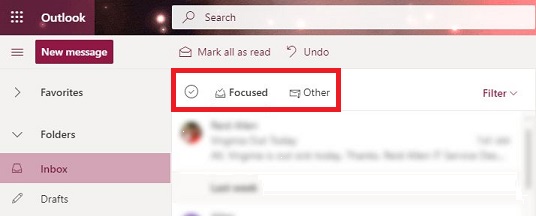
Focused Inbox will replace Clutter and is now available to all Office 365 customers. Focused Inbox helps you focus on the emails that matter most to you. It separates your inbox into two tabs - 'Focused' and 'Other'. Emails you need to act on right away are in the Focused tab, while the rest will be filtered to Other. You can switch between tabs at any time to access your emails.
Enabling Focused Inbox in Office 365
- Log in to Office 365 at outlook.wright.edu
- Click on the gear icon in the top righthand corner
- Click on the toggle button for 'Focused Inbox'
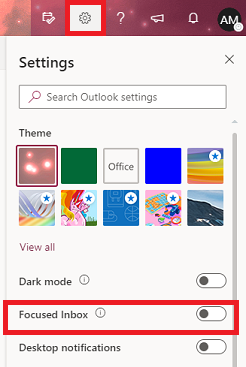
This will enable Focused Inbox. You can switch between your Focused Inbox and Other folder by selecting the tabs for either folder:
For more information about the change to Focused Inbox, visit https://techcommunity.microsoft.com/t5/Outlook-Blog/Focused-Inbox-no-more-Clutter/ba-p/389791. If you have any questions, including how to turn Focused Inbox on, contact the CaTS Help Desk at (937) 775-4827 or email helpdesk@wright.edu.
Checking Your Wright State Email

How to Check Your WSU Email
WSU email is the primary means of communication for many of the departments on campus. It is recommended that you check your WSU email daily, to avoid missing any important messages.
- Visit wings.wright.edu (or visit www.wright.edu and click the WINGS icon in the upper-right hand corner of the page)
- Enter in your Campus User Name (eg. w###abc- the letter w, 3 numbers, and your 3 initials)
- Enter in your Password
- Your campus username and password can be found on your letter from Admissions
- If you do not have your campus username and password, call CaTS (Wright State's IT services department) at (937) 775-4827
- Note: If this is your first time logging into WINGS, you will be prompted to change your Password for security purposes
- Once in WINGS, click on the ‘Office365/Email’ icon in the upper right-hand corner of the page
Checking Your 'Clutter' Folder
Your Wright State email will sometimes filter out email it thinks is 'junk mail'; check your Clutter folder to make sure you're not missing anything important!
- Open your email following the steps above
- On the left-hand side of your email, select the 'Clutter' folder below 'Inbox'
Turning Off Your 'Clutter' Folder
If you wish to turn Clutter off, follow the steps below:
- Open your email following the steps above
- Click on the gear icon in the upper right-hand corner of your email screen
- Select “Options”
- Select "Clutter" under 'Automatic Processing'
- Deselect "Separate items identified as clutter"
- Select "Save"
- To turn Clutter back on, follow steps a and b, then select "Separate items identified as clutter" and click "Save"
How to Forward your WSU Email to External Email Accounts
If you have an external email account that you would like your WSU email account forwarded, follow these steps.
- Go to outlook.wright.edu
- Enter your campus username and password
- Click on the gear icon in the upper right-hand corner of your email screen
- Click on Mail under Your app settings.
- On the left, under the Accounts submenu, click on Forwarding.
- Select the radio button for Start Forwarding.
- Type in the email address you want to forward your mail to.
- Click Save.
- To stop forwarding, follow steps 1-5 above then select the Stop Forwarding radio button, followed by the Save button.
Download Free Microsoft Office!

Wright State offers all current faculty, staff, and students free Microsoft Office for personal devices through our ProPlus program. Visit https://www.wright.edu/information-technology/services/proplus for installation instructions and more information on what software is included!
OneDrive and SharePoint Access Restored
Earlier access issues to OneDrive for Business and SharePoint Sites have been resolved.
If you experience further issues, contact the CaTS Help Desk at helpdesk@wright.edu.