CaTS | Information Technology

CaTS Blog

CaTS SharePoint Training!

Friday, July 8, 2016

CaTS is offering training workshops for owners and users of Office 365 SharePoint Sites. Multiple dates and sessions are available.

  • Ask Anything About Office 365 & SharePoint - Want to know what Office 365 is about? Have questions about your Office 365 SharePoint Site? Come on in and ask us about Office online to learn about Office 365 and the basics of managing and/or owning a SharePoint Site.
  • SharePoint Site Owner Training - *Registration Required* Learn the 'ins and outs' of owning and managing a SharePoint Site from content to membership.
  • Advanced SharePoint Site Owner Training - *Registration Required* *Prerequisite: Attended or viewed the CaTS Office 365 Communities Owner Training* Learn to manage the look and feel of document libraries and lists for your users with view and web parts, build your first communication workflow from scratch, and use task lists and assignments to begin managing a project using a Site.


For more information, visit our Workshops page. To register, visit the CaTS Training and Learning Site
 
If you have any questions, please contact the CaTS Help Desk at (937) 775-4827, or toll free at 1-888-775-4827.

Changes for Office 365 Sites

Monday, May 23, 2016

Exciting changes are coming soon to Office 365 Sites! More information is available below. If you have questions about these changes, contact the CaTS Help Desk at (937) 775-4827.

New Name, Better Search and Navigation
Office 365 Sites, which is built on Microsoft’s SharePoint service, are being renamed to simply “SharePoint”. This change will be visible on your Office 365 services grid and on all Office 365 Sites. The search and navigation functions on sites will also change. To read more, visit:
Find Sites and Portals in Office 365

New File Sharing Capabilities
File management, sharing, and collaboration options are being enhanced for Sharepoint and OneDrive for Business. Read more here:
File Sharing and Collaboration for Office 365

Office 365 Updates - 5/17/16

Saturday, May 21, 2016

Microsoft has made some recent changes to Wright State’s Office 365 environment, specifically to email functionality through the Outlook Web App (OWA), accessible at http://outlook.wright.edu.

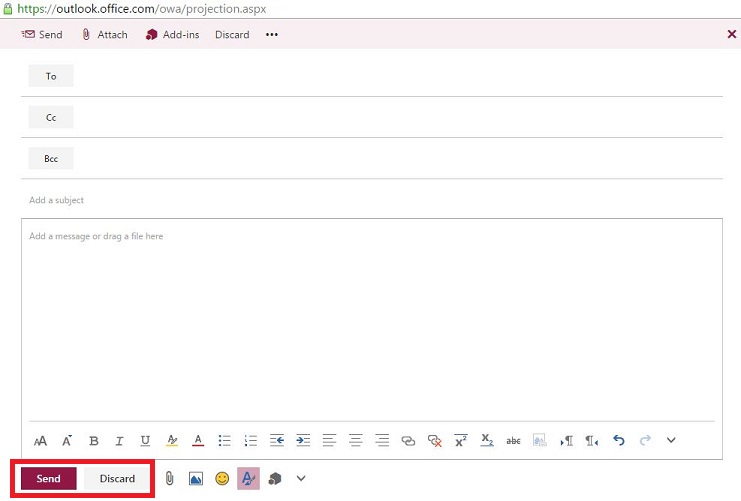
  • All outgoing emails now have 'Send' and 'Discard' options located at the bottom of the compose window.
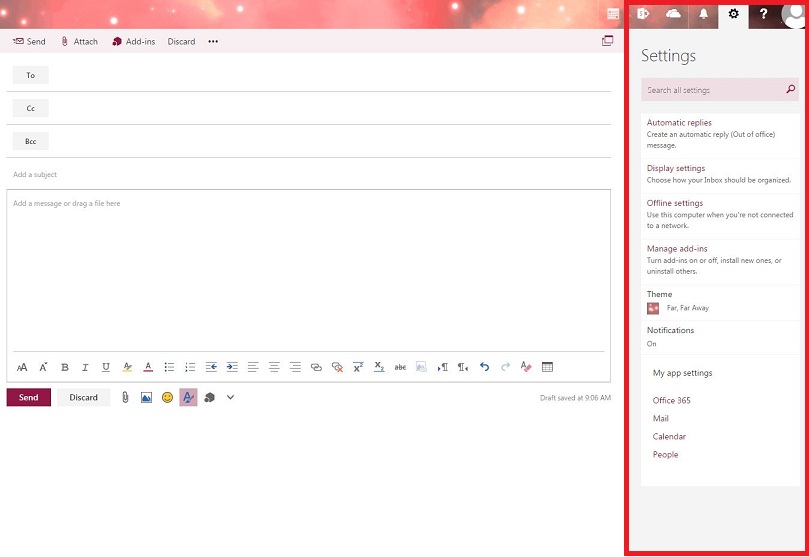
  • The Settings option has changed from a drop-down list to a sidebar format.
  • The default option to reply to an email has been changed to Reply All. This option can be changed back to Reply.

For more details on the above changes, visit: https://www.wright.edu/information-technology/blog/article/office-365-em...

Tip: How to Turn off Clutter in Outlook Web App (OWA)

Learn: Other Office 365 Services

New: Office 365 Planner
Office 365 Planner will be available beginning Friday, May 20. Planner offers Wright State members an easy solution to organize teamwork and allows users to create new plans, assign tasks, share files and chat about their project. To learn more about Planner, visit https://blogs.office.com/2015/09/22/introducing-office-365-planner/.

For More Help:
For more information about Wright State’s Office 365 service,visit https://www.wright.edu/office365. You can also contact the CaTS Help Desk at (937) 775-4827 or send an email to helpdesk@wright.edu.
 

Email Access Issues Resolved

Monday, May 2, 2016

As of late Saturday evening, all login issues with WINGS/Office 365 have been resolved.

If you are still experiencing issues, please contact the CaTS Help Desk at (937) 775-4827.

Email Access Issues 4/30/16

Saturday, April 30, 2016

At this time, access to Wright State email is only available through outlook.wright.edu. Email access through the Office 365/Email icon in WINGS, is currently experiencing issues. CaTS is aware of the issue and working on a solution.

If you have questions, please call the Help Desk at (937) 775-4827, or email helpdesk@wright.edu.

Office 365 Email Update

Friday, April 29, 2016

Microsoft recently made updates to email functionality through the Outlook Web App (OWA), accessible at http://outlook.wright.edu. If you have further questions about this information, please contact the CaTS Help Desk at (937) 775-4827.

Reply All Default

The default setting to respond to emails has been changed from 'Reply' to 'Reply All'. To change this option back to 'Reply', follow the steps below:

  1. Login to http://outlook.wright.edu with your Office 365 username and password.
  2. Click the gear icon in the upper right corner of the page.
  3. Select Mail at the bottom under 'My app settings'.
  4. Click the drop down arrow on the Automatic Processing section.
  5. Select Reply Settings and choose Reply.
  6. Click Save.

"Send" and "Discard" Options

All 'New' and 'Reply' email messages now have Send and Discard options located at the bottom of the message. See the screenshot below.


Changes to "Settings" Options

The Settings option has changed from a drop-down list to a sidebar format. See the screenshot below.

Clutter Settings

Friday, April 29, 2016

What is Clutter?

Clutter is an email sorting tool available to all Wright State Office 365 users. Clutter moves your low priority messages out of your Inbox so you can easily scan for important messages. Clutter analyzes your email habits, and based on your past behavior, it determines the messages that you’re most likely to ignore. It then moves those messages to a folder called Clutter, where you can review them later. You can proactively train Clutter by marking items as Clutter or simply move the items to the Clutter folder. You control Clutter from the Outlook Web App (OWA) options menu. If you find items in your Clutter folder that shouldn’t be there, train Clutter by moving the message back to your inbox. 

Checking Your Clutter Folder

  1. Log in to WINGS (http://wings.wright.edu) with your campus username and password.
  2. Click the Email/Calendar button in the top right corner. This will automatically log you in to Office 365.
  3. On the left-hand side of your email, select the Clutter folder.

Turning Off Your Clutter Folder

  1. Log in to WINGS (http://wings.wright.edu) with your campus username and password.
  2. Click the Email/Calendar button in the top right corner. This will automatically log you in to Office 365.
  3. Click on the gear icon in the upper right-hand corner.
  4. Select Mail at the bottom.
  5. Select Clutter under Automatic Processing.
  6. Deselect Separate items identified as clutter.
  7. Select Save.

Note: To turn Clutter back on, follow steps 1 - 5, then select "Separate items identified as clutter" and click "Save"

Enhancements to University's Email Spam Service

Tuesday, April 19, 2016

Beginning Thursday, April 21, CaTS will be using Proofpoint's Targeted Attack Protection (TAP) service to help protect against specific threats that are distributed via email, including phishing and targeted attacks. These threats originate from malicious web sites which are triggered when users click on links in an email.

When a link in an email is clicked, TAP scans that URL. If the link is safe, the user will be taken to the original website. If the link is malicious, the user will see a page in the browser letting them know the site has been blocked.

TAP is being implemented as an enhancement to our existing spam filtering service. For more information about TAP, visit https://www.wright.edu/information-technology/security/targeted-attack-p....

For further questions about TAP, contact the CaTS Help Desk at (937) 775-4827, or email helpdesk@wright.edu.
 

Set Up Email On Your Phone!

Friday, January 15, 2016

You can access your Wright State email on your phone! For instructions on how to setup your mobile device or smartphone to access Office 365, visit https://www.wright.edu/information-technology/services/office-365-setup-instructions#tab=mobile-devices


Office 365 Site Owners Training

Tuesday, October 27, 2015

CaTS is offering a new training workshop for owners of Office 365 Sites.

Title: Office 365 Advanced Site Owner

Description: Learn to manage the look and feel of document libraries and
lists for your users with views and web parts, build your first
communication workflow from scratch, and use task lists and assignments
to begin managing a project using a Site.


To register for this workshop, visit:
https://www.wright.edu/information-technology/support-and-training/works....

If you have any questions, please contact the CaTS Help Desk at (937)
775-4827, or send an email to helpdesk@wright.edu.

Pages