CaTS | Information Technology

CaTS Blog

Important Information for Placing Local Phone Calls

Tuesday, January 28, 2020

Much of what is covered below pertains to your cellular or home services as well. The Carrier companies are mandating a change to our dialing area that incorporates the 10-digit dialing plan that many other areas across the country have been experiencing for many years. Remember to update all of your contact lists.

New Dialing Procedures for Placing Local Calls
The local carrier is mandating:

Beginning Saturday, February 8, 2020, you will be required to dial the area code + the telephone number when placing local calls. This means all calls in the 937 area code that are currently dialed with seven digits will need to be dialed using the area code. The same dialing procedure will apply to phone numbers assigned to the new 326 area code.

All customers can begin using the new dialing procedures before February 8. 

Here on campus we have already created this capability so that you can begin the new dial plan now.

Why is This Change Necessary?
To ensure a continuing supply of telephone numbers, the 326 area code is being added to the area served by the 937 area code. Since two area codes will now serve the same geographic region, the area code must be used when dialing any telephone number; including calls within the same area code.

What Actions Do I Need to Take?
In addition to changing your dialing procedures, all services, automatic dialing equipment, or other types of equipment that are programmed to dial a 7-digit number will need to be reprogrammed to use the new dialing procedures. Some examples are life safety systems, PBXs, fax machines, internet dial-up numbers, alarm and security systems or gates, speed dialers, call forwarding settings, voicemail services for your personal devices, etc.

What Will Remain the Same?

  • Your phone number, including area code
  • The price of a call, coverage area, or other rates and services
  • You can still dial just three digits to reach 911
  • When dialing a number with a 937 or 326 area code from a campus phone, you will still need to enter 9 before entering the 10-digit phone number (ex. 9-937-XXX-XXXX). This will prevent a long distance fee from being incurred. If you are making long distance calls, you will need to enter 9-1 before entering the 10-digit phone number (ex. 9-1-513-XXX-XXXX)


Select WINGS Express Services Now Requiring Two-Factor Authentication

Wednesday, January 22, 2020

Beginning Tuesday, January 28, two-factor authentication will be required for Wright State faculty, staff, and student employees when accessing certain services within WINGS Express, regardless of your location or campus network connection.

Which Services Are Affected?
Affected WINGS Express services include:

  • Faculty Grade Summary
  • Final Grades
  • Student Xtender Documents
  • Direct Deposit Allocation
  • Pay Stub
  • Tax Exemptions or Allowances
  • W2 Year End Earnings Statement
  • W-2c Corrected Wage and Tax Statement

When Will This Happen?
The WINGs Express services listed above will require two-factor authentication on Tuesday, January 28.

Why Is This Happening?
With the release of Banner, the University is consolidating account credentials down to a single campus username and password, and moving away from the use of the UID and PIN for authentication. Wright State is requiring two-factor authentication to further enhance your account's security for services containing sensitive information.

What Actions Do I Take Now?
Faculty and staff should have already previously enrolled in two-factor authentication to access services such as WINGS, Office 365, ServiceNow, and more. You do not need to re-enroll in Duo when this change is implemented.

Student employees who have not enrolled in Duo will need to do so to access the services listed above. Once enrolled, you will also be required to use two-factor authentication to access WINGS, Office 365, ServiceNow, and more when off campus or using the campus wireless networks.

What Differences Will I Notice?
The major difference you will notice is that you will ALWAYS need to authenticate using two-factor when accessing these WINGS Express services, regardless of being on or off campus, on a wired connection, or connected to a wireless network. Two-factor authentication for WINGS, Office 365, ServiceNow, and more will continue to only be required when off campus or using the campus wireless networks.

More Information and Instructions
Please visit wright.edu/2fa for more information concerning the two-factor service.

Questions?
If you have any questions, contact the CaTS Help Desk at (937) 775-4827, or email helpdesk@wright.edu.

Two-Factor Authentication for Pilot Required January 6

Thursday, December 19, 2019

Beginning January 6th, 2020, two-factor authentication will become mandatory for all faculty and staff when accessing Pilot from off campus, wireless, or VPN connections. When logging into Pilot via pilot.wright.edu, you will be prompted with the same two-factor authentication screen you receive when accessing services such as WINGS, Office 365, and ServiceNow.

What is Two-Factor Authentication?

Two-factor authentication is an extra layer of security that requires not only a username and password, but also authenticates with a device in your possession (cell/smart phone, key fob, landline phone).

Benefits of Two-Factor Authentication

  • Increased online security
  • Increased security for your Wright State accounts

What Actions Do I Take Now?

CaTS began requiring two-factor authentication via Duo mobile for all faculty, staff, and delegated users on June 3, 2019. You do not need to take any action if you have already enrolled in this service.

What Differences Will I Notice?

The only difference you will notice is the two-factor authentication prompt when logging into Pilot at pilot.wright.edu with your Campus 'w' username and password. If you have the 'Remember Me' box checcked on the workstation and browser you're attempting to access Pilot on, you won't need to perform Duo two-factor authentication until this expires.

For more information regarding two-factor authentication, visit wright.edu/2fa. If you have any questions, contact the CaTS Help Desk at (937) 775-4827, or email helpdesk@wright.edu.

Checking Your Wright State Email

Friday, November 15, 2019

How to Check Your WSU Email

WSU email is the primary means of communication for many of the departments on campus.  It is recommended that you check your WSU email daily, to avoid missing any important messages.

  1. Visit wings.wright.edu (or visit www.wright.edu and click the WINGS icon in the upper-right hand corner of the page)
  2. Enter in your Campus User Name (eg. w###abc- the letter w, 3 numbers, and your 3 initials)
  3. Enter in your Password
    1. Your campus username and password can be found on your letter from Admissions
    2. If you do not have your campus username and password, call CaTS (Wright State's IT services department) at (937) 775-4827
  4. Note: If this is your first time logging into WINGS, you will be prompted to change your Password for security purposes
  5. Once in WINGS, click on the ‘Office365/Email’ icon in the upper right-hand corner of the page


Checking Your 'Clutter' Folder

Your Wright State email will sometimes filter out email it thinks is 'junk mail'; check your Clutter folder to make sure you're not missing anything important!

  1. Open your email following the steps above
  2. On the left-hand side of your email, select the 'Clutter' folder below 'Inbox' 

Turning Off Your 'Clutter' Folder

If you wish to turn Clutter off, follow the steps below:

  1. Open your email following the steps above
  2. Click on the gear icon in the upper right-hand corner of your email screen
    1. Select “Options”
    2. Select "Clutter" under 'Automatic Processing'
    3. Deselect "Separate items identified as clutter"
    4. Select "Save"
  3. To turn Clutter back on, follow steps a and b, then select "Separate items identified as clutter" and click "Save"


How to Forward your WSU Email to External Email Accounts

If you have an external email account that you would like your WSU email account forwarded, follow these steps.

  1. Go to outlook.wright.edu
  2. Enter your campus username and password
  3. Click on the gear icon in the upper right-hand corner of your email screen
  4. Click on Mail under Your app settings.
  5. On the left, under the Accounts submenu, click on Forwarding.
  6. Select the radio button for Start Forwarding.
  7. Type in the email address you want to forward your mail to.
  8. Click Save.
  9. To stop forwarding, follow steps 1-5 above then select the Stop Forwarding radio button, followed by the Save button.

Phishing and Fake Job Offer Scams

Friday, November 15, 2019
phishing

CaTS has noticed an increase in the number of phishing attempts at the beginning of Fall, Spring, and Summer semesters. Below is information to help keep your Wright State accounts secure:

What are Phishing Scams?

  • Phishing scams are emails designed to trick you into sending an unknown third party your account information or other personal or financial information.
  • These emails may look like they're coming from Wright State, CaTS, your bank or credit card issuer, or any other institution you do business with.
  • The links in phishing emails often take you to a web page that appears to be a WSU site, such as wings.wright.edu. You can avoid being tricked by these fake pages by typing in the URL, such as wings.wright.edu rather than trusting the link. 
  • Many email scams often contain fake job offers; if an email contains poor grammar or wording, or seems too good to be true, it most likely is.

How Can You Avoid Phishing Scams?

  • Remember that CaTS, WSU and other reputable businesses WILL NEVER ask you for any personal information, such as your username and password, via email.
  • Never respond to a suspicious email or click links in those emails.
  • Don't give out your personal information to anyone via email.
  • Don't download attachments from an email unless you trust the sender.

Questions?

If you receive an email and are unsure if the message is a scam, contact the CaTS Help Desk at (937) 775-4827. We can help determine whether the email you received is real or not. 

Important Information About macOS Catalina

Tuesday, October 15, 2019

Please disregard if you are a Windows PC user

Wright State Faculty and Staff macOS users,

Recently, Apple announced their latest Mac operating system update 'Catalina' would be available on Monday, October 7. At this time, certain CaTS applications do not support this latest update for Mac devices.

CaTS is aware that printing using the university's managed print is currently unavailable for machines that have been upgraded to Catalina.

Please do NOT update your university-owned macOS. CaTS will be testing various applications on the new operating system, and will notify campus when it's appropriate to update your system.

If you have questions, contact the CaTS Help Desk at (937) 775-4827, or email helpdesk@wright.edu

Download Free Microsoft Office!

Monday, June 24, 2019

Wright State offers all current faculty, staff, and students free Microsoft Office for personal devices through our ProPlus program. Visit https://www.wright.edu/information-technology/services/proplus for installation instructions and more information on what software is included!

Hoonuit: Discontinued as of 7/1/19

Wednesday, May 22, 2019

Beginning July 1, Wright State members will no longer be able to access Hoonuit (formerly Atomic Learning), the free online service that provides video tutorials on popular software. CaTS will be ending its contract with Hoonuit due to low customer usage and increasing costs, based on careful examination of Hoonuit data.

Other online resources for University software will still be available through the CaTS website.Additionally, all Ohio public libraries offer access to free online training solutions such as Lynda.com. Visit https://www.ohioweblibrary.org/lynda/ to learn more about Lynda.com, and if it's available through your local library.

If you have any questions or concerns about the discontinuance of this service, please contact the CaTS Help Desk at (937) 775-4827, or email helpdesk@wright.edu

Updates to Banner 9 Admin 5/5/19

Friday, May 3, 2019

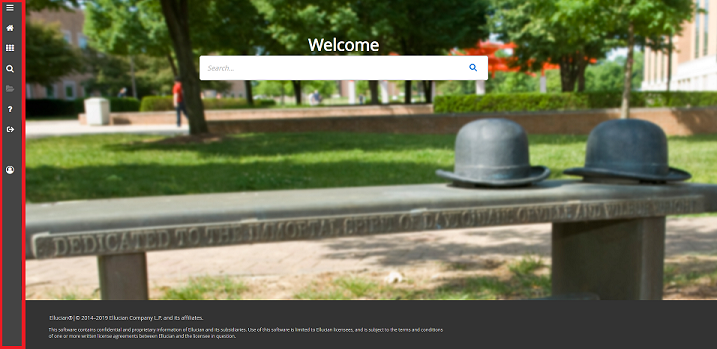
On Sunday, May 5, several updates were made to the homepage in Banner 9 Admin, which you can view below. All functionality in Banner 9 Admin will still remain the same.

For more information and to read about these updates, view Application Navigator 3.1.x (PDF)

For general information about Banner 9 Admin, visit https://www.wright.edu/information-technology/services/banner-9-admin.

What's New

The taskbar is now located along the lefthand side of Banner 9 Admin, instead of across the top:

The following icons are located on the taskbar:


Toggle Menu (Red)

Dashboard (Blue)

Applications (Orange)

Search (Green)

Recently Opened (Yellow)

Help (Light Gray)

Sign Out (Pink)


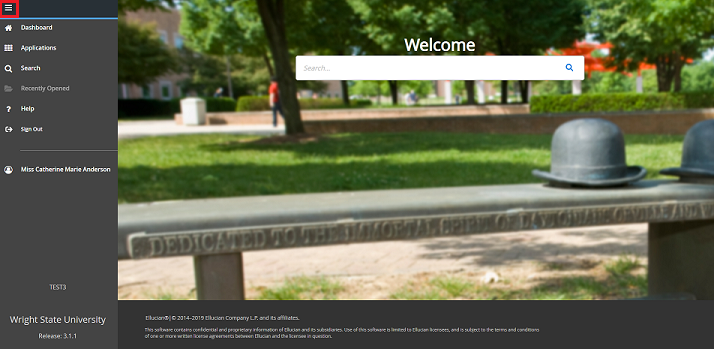
To expand the menu, click on the 'Toggle Menu' icon at the top:

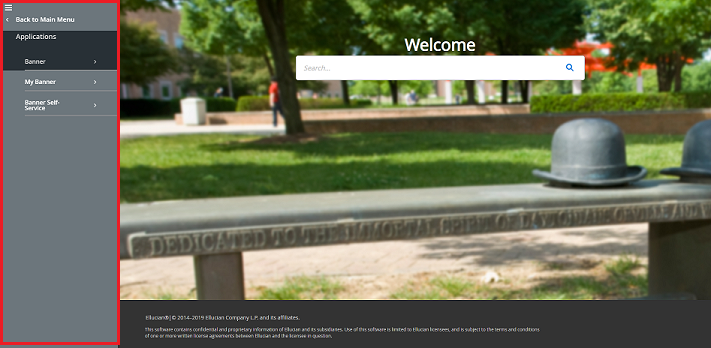
Select the grid icon to open 'Applications'. In this menu you can find both Banner and My Banner:

If you have any questions, please contact the CaTS Help Desk at (937) 775-4827, or email helpdesk@wright.edu.

Verizon Cell Service Improvements on Campus

Friday, April 5, 2019

CaTS is happy to announce that we've completed the year long project with Verizon to improve cell service throughout the Dayton Campus!

This project consisted of the installation of a new Verizon cell tower on Oelman Hall, and a Distributed Antenna System (DAS). The DAS allows for improved Verizon cellular coverage in the tunnels and building lower levels!

The entire cost of this project was funded by Verizon. All Verizon customers are now able to take advantage of improved access to the Verizon network while on campus. 

Pages