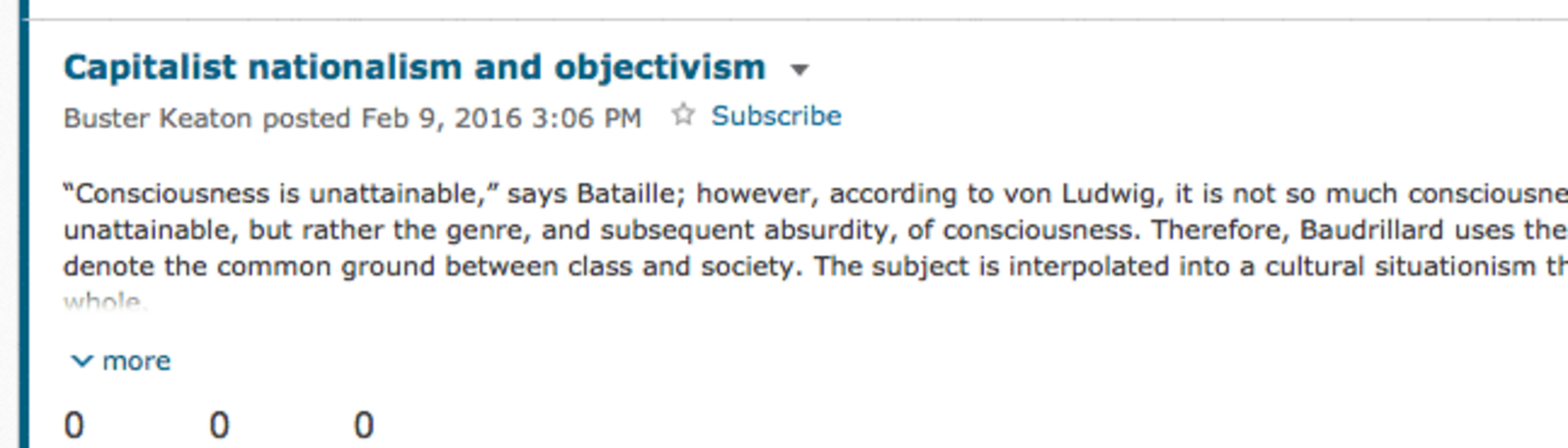
There are two ways to view discussions, reading view and grid view.
Reading View
The default, “Reading View,” shows each post that starts a new thread in a topic. You have to click each of them to see replies to those threads.
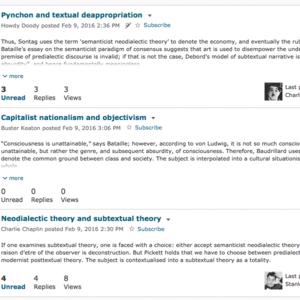
Grid View
When you view a topic in “Grid View,” you can see the subjects lines of all your student’s posts at a glance, with the replies indented to show the threaded discussion.
Choose Your View
There are three ways to choose the view you want:
- Click your name in the upper right corner of your screen, choose “Account Settings” then click the “Discussion” tab. Choose the default view you want.
- Or… If you’re already in the Discussion area, click the blue “Settings” link near the top right of the screen. Then choose your default view.
- Or… Click the small downward arrow next to the name of a topic. You will have an option to open the topic in whichever view is not your current one.
The following video shows how to switch views.