On this page:
Classic Pilot
- About Webex
- What is the easiest way for me and my students to access Webex from my Pilot Course?
- How do I add Webex LTI to my Pilot course content page?
- How do I set up Webex LTI?
- Classroom Collaboration
- Classroom Collaboration Teams
- Preassign Participants to Breakout Sessions
- Slido - Use Live Polls to gather feedback, take votes, or test knowledge
- Use Apps to share and collaborate with student participants
- Share content or your screen
- Cisco Hardware Available in WSU Classrooms
- Best Practices for Using Webex in Your Classroom
- WSU's Webex Support Site
- Download the Latest Webex App
- Important Links
New Content Experience
- About Webex
- What is the easiest way for me and my students to access Webex from my Pilot Course?
- How do I add Webex LTI to my Pilot course content page?
- How do I set up Webex LTI?
- Classroom Collaboration
- Classroom Collaboration Teams
- Preassign Participants to Breakout Sessions
- Use Apps to share and collaborate with student participants
- Share content or your screen
- Cisco Hardware Available in WSU Classrooms
- Your Webex Personal Room / Webex User Hub Outside of Pilot
- Best Practices for Using Webex in Your Classroom
- WSU's Webex Support Site
- Download the Latest Webex App
- Important Links
Classic Pilot
About Webex
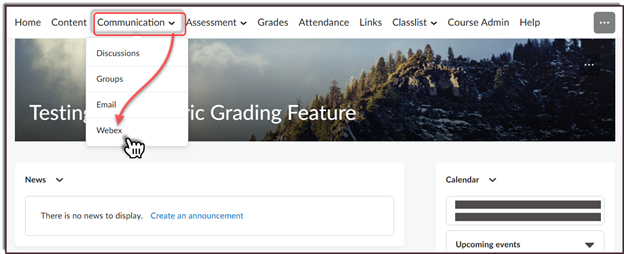
Cisco Webex LTI (formerly Webex Education Connector) is an external learning tool integrated in Pilot that is used for conducting classes in a live synchronous virtual classroom, as well as for asynchronous work. This tool can be used to schedule virtual class meetings, promote online group work, and to schedule virtual office hours using Cisco Webex Meetings. Webex is always available from the “Communication“ Navbar drop-down menu in the standard Pilot course template. If you prefer, you can add Webex to one of your Content Modules as an External Learning Tool. However, we recommend you use the “Communication“ Navbar drop-down menu. Either way, below we’ll tell you how to access and set it up.
What is the easiest way for me and my students to access Webex from my Pilot Course?
From the course Navbar, select Communications and then Webex.
How do I add Webex LTI to my Pilot course content page?
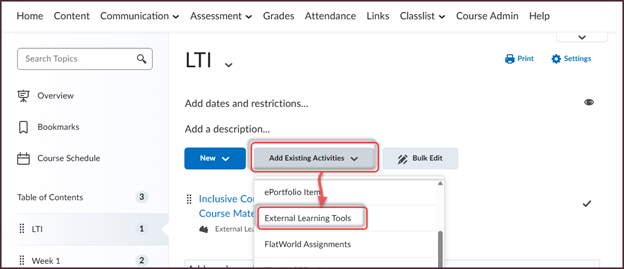
- From you specific module or submodule in Content, select Add Existing Activity.
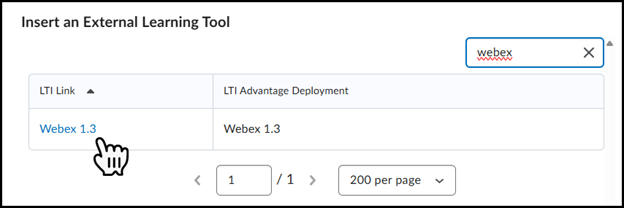
- Search for and select the current Webex LTI link.
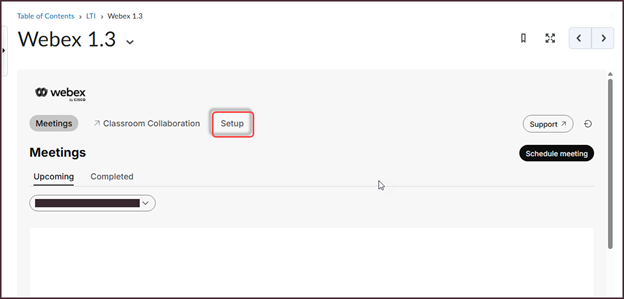
- Once there, you can use the “Setup” button/link to enable/disable “Meetings”, “Other Recordings”, “Office Hours”, and “Classroom Collaboration”.
For more information visit the “Webex LTI for teachers” help page here.
How do I set up Webex LTI?
For easier viewing during Setup, we recommend you access Webex from the “Communication“ Navbar drop-down menu of your Pilot course.
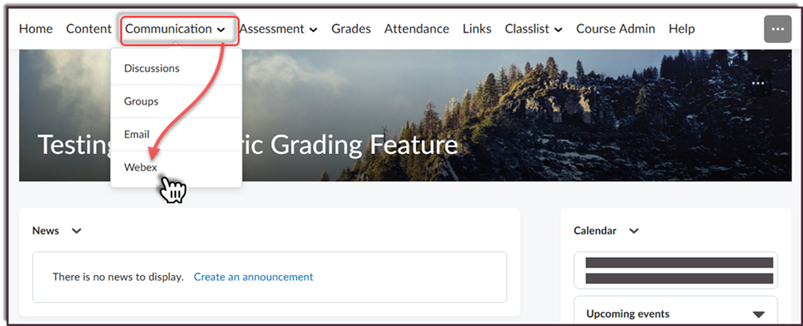
In Webex, select “Setup”.
Meetings
In a Pilot course, usually Meetings are used to create recurring lecture sessions delivered online. It is OFF by default. You can turn it ON.
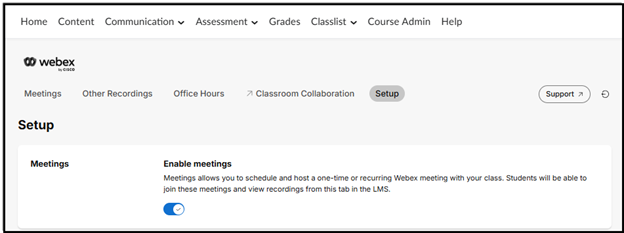
Other Recordings
If enabled, you can import your non-Webex LTI recordings from your Webex cloud recordings available on Webex User Hub and share them in your course.

Office Hours
While you may choose to hold Office Hours in your office, Webex “Office hours” provides you the ability to set up “available days and times” and the students can pick from any available time to “book” their individual time with you. These booked times are automatically scheduled as one-on-one online Webex Meeting sessions – though you don’t have to use them as online meetings. Webex Office Hours span across all of your courses using Webex LTI.

Classroom Collaboration
The Classroom collaboration feature provides an online space where your students can work together via asynchronous chat messages, schedule their own synchronous group meetings without you, and share files or whiteboards. Additionally, you can set up specific teams and monitor all of their activities.
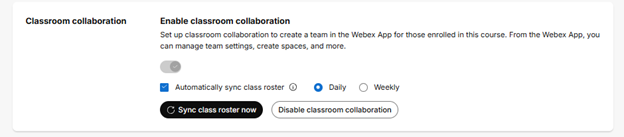
Classroom Collaboration Teams
In the Webex App, teams help you keep everything organized by categorizing multiple spaces under a theme. When you open Classroom collaboration for the first time and sign in, you automatically create a team for your course. Everyone that is enrolled in your class gets added to the team and to the team's General space.
In addition to the General space, you can create more spaces in your course for different groups of students.
The classroom collaboration experience inside the LMS has changed in Webex LTI. Select the “Classroom collaboration” tab to open your class team in the Webex App for web. The course's team is opened on web.webex.com. After the first time, you can access your Classroom collaborations teams via the Webex App. (Note: Previously in Webex Education Connector, the course's team was accessed through a widget embedded in a webpage from the LMS or the Webex App.)
Read more about Classroom Collaboration Teams here.
Preassign Participants to Breakout Sessions
It is possible to preassign participants to breakout sessions. There are three ways to do so and you can use the Webex Help Center Article to learn how.
Slido - Use Live Polls to gather feedback, take votes, or test knowledge
Polling in Webex can be done using Slido, a built in Webex app that allows you to conduct engaging, interactive polls, quizzes, surveys, Q&A sessions, and more.
Read more about Slido and how it integrates into Webex here.
Create Slido Surveys / Polls to Engage Participants
For instructions on how to create Slido polls to use in your Webex session, click here.
Interaction Tips for Slido
For tips on how to use Slido in your class, click here.
Use Apps to share and collaborate with student participants
Read more about using apps to collaborate with participants here.
Share content or your screen
Share your application, camera, files, part of your screen, or even your entire screen with your participants. Learn more about how to do that here.
To share only a portion of your screen, view the Webex content here.
Cisco Hardware Available in WSU Classrooms
To view the Cisco hardware currently available in Wright State's classrooms, visit the webpage here.
Your Webex Personal Room / Webex User Hub Outside of Pilot
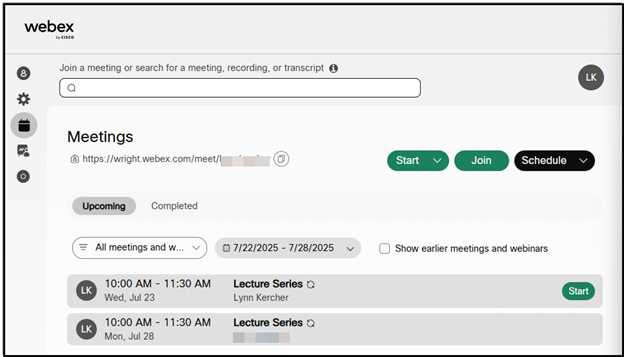
You have access to your Webex Hub by visiting and using your WSU credentials to sign into wright.webex.com. This page holds both your cloud recordings & sessions scheduled through the Webex LTI in Pilot as well as any additional meetings you’ve scheduled from the hub.
The Webex User hub will include a bar on the left that provides access to your Profile, Settings, Scheduled meetings, and recordings. The remaining area includes, among other things, a link to the space that you can share with others, a list of your upcoming and your completed meetings.
Best Practices for Using Webex in Your Classroom
Clarify the access procedures for the Course Type. Communicate technology and browser requirements to your students at the beginning of the term. Before a class is scheduled to meet, make sure the students know procedures and basic troubleshooting tips for joining the session. There will be some latency with transcontinental meetings. It is not unreasonable to see a 5 to 6 seconds delay for an attendee overseas.
Best Practices for Secure Meetings
Best practices for great online meetings
Web Browser tips: Completely close your browser before beginning a session. Always use the most up-to-date version of your browser and limit open browser tabs to ones you are using for that session. Chrome is the recommended web browser to use on both Mac & Windows. For the optimal experience, allow your web browser to open or handoff the meeting to the Webex App you have installed.
- My Webcam does not Work in a Webex Session
- “Make sure the webcam is plugged in prior to joining the Webex session. Close any programs that are accessing the webcam before joining the Webex session. (Examples: Teams, Instant Messaging software, webcam software, etc)”. Cisco recommends using the Webex App to gain the full capabilities of Webex meetings.
Have a backup plan in case a live class session gets interrupted, and participants cannot immediately get back into it. Communicate this plan, including how you will notify your students and where they are to go BEFORE class sessions begin. Options:
- Use your Webex Personal Room instead of a scheduled meeting room.
- Microsoft (MS) Teams is the backup video conferencing tool for Webex. Request MS Team for your class
- Email classlist through Pilot
- News / Announcement on your Pilot course homepage
- Classroom Collaboration (via Webex LTI) AKA Webex Spaces (You can also start synchronous Webex Meetings from these Spaces.)
Provide students with information on where to get tech support if they have an issue. If you need Webex support, contact the CaTS Help Desk.
- Webex Academy
- Roles:
Set clear expectations within your sessions. Do you want students to use profile pictures, have their webcams on, mute their mics, raise their hand before opening their mics, how you expect them to use the chat function, etc.? Note: If the breakout sessions aren't ended when students return to the main meeting, they need to unmute their audio to be heard.
- Classroom Collaboration Student Meetings: Students should always use the Webex Desktop App when joining to ensure sharing, video and all features work well.
Tips for using Webex LTI in Pilot:
- Recurring Class Meeting Scheduling:
- Name the meetings with the course name and term/year so the meeting names are unique to avoid errors. eg. “SPN-1010-02 Fall 2023”
- Select “Advanced option: Automatic recording: Automatically start recording when the meeting starts” at the bottom when scheduling your recurring class meetings.
- To delete Individual meetings (if meetings occur on a holiday) from a recurring meeting series, go to Webex User Hub: wright.webex.com.” WARNING: Deleting a meeting which is a part of a recurring meeting series from Pilot will immediately and permanently delete the entire meeting series, including all associated class recordings from within your Pilot courses’ Webex LTI, as well as from your Webex User Hub. This action will also delete the associated analytics for meetings and recordings. According to Cisco, this is by design.
- Recording:
- Use “Other Recordings” to import some of your other Webex recordings from all of your other non-Webex LTI recordings located in Webex User Hub.” Turn this on from the “Setup” tab in Webex LTI within your Pilot course.
WSU's Webex Support Site
Visit the Webex Suite Meeting Platform page for more general information about Webex.
Download the Latest Webex App
The latest Webex app is available here.
Important Links
- Webex Suite meeting platform and User Hub
- Get Started With User Hub
- Webex App | About the Webex Suite meeting platform
- ITS and Wright State Online Workshops
- In-Person/Remote Video Learning Classrooms
- The Webex LTI for Teachers
- Webex LTI for students
- What's new for Webex LTI
New Content Experience
About Webex
Webex is WSU’s one supported virtual meeting and meeting management platform for your online courses.
You and your students can access your course specific in two ways:
- From the Navbar: There is a link in the Navbar that takes you and your students directly to the course Webex.
- Embedded in the content: If you choose to place it, they can access it from your specifically placed Webex LTI.
Either way, below we’ll tell you how to access and set it up.
What is the easiest way for me and my students to access Webex from my Pilot Course?
From the course Navbar, select Communications and then Webex.
How do I add Webex LTI to my Pilot course content page?
Cisco Webex LTI (formerly Webex Education Connector) is an external learning tool integrated in Pilot that is used for conducting classes in a live synchronous virtual classroom, as well as for asynchronous work. This tool can be used to schedule virtual class meetings, promote online group work, and to schedule virtual office hours using Cisco Webex Meetings. Webex is always available from the “Communication“ Navbar drop-down menu in the standard Pilot course template. If you prefer, you can add it to one of your Content Units (formerly Content Modules). However, we recommend you use the “Communication“ Navbar drop-down menu.
- From the specific unit, select Add Existing.
- On the “What would you like to add?” page, select “External Tool Activity”.
- Search for and select the current Webex LTI link.
- Once there, you can use the “Setup” button/link to enable/disable “Meetings”, “Other Recordings”, “Office Hours”, and “Classroom Collaboration”.
For more information visit the “Webex LTI for teachers” help page here.
How do I set up Webex LTI?
For easier viewing during Setup, we recommend you access Webex LTI from the “Communication“ Navbar drop-down menu of your Pilot couse.
In Webex LTI, select “Setup”.
Meetings
In a Pilot course, usually Meetings are used to create recurring lecture sessions delivered online. It is OFF by default. You can turn it ON.
Other Recordings
If enabled, you can import your non-Webex LTI recordings from your Webex cloud recordings available on Webex User Hub and share them in your course.
Office Hours
While you may choose to hold Office Hours in your office, Webex “Office hours” provides you the ability to set up “available days and times” and the students can pick from any available time to “book” their individual time with you. These booked times are automatically scheduled as one-on-one online Webex Meeting sessions – though you don’t have to use them as online meetings. Webex Office Hours span across all of your courses using Webex LTI.
Classroom Collaboration
The Classroom collaboration feature provides an online space where your students can work together via asynchronous chat messages, schedule their own synchronous group meetings without you, and share files or whiteboards. Additionally, you can set up specific teams and monitor all of their activities.
Classroom Collaboration Teams
In the Webex App, teams help you keep everything organized by categorizing multiple spaces under a theme. When you open Classroom collaboration for the first time and sign in, you automatically create a team for your course. Everyone that is enrolled in your class gets added to the team and to the team's General space.
In addition to the General space, you can create more spaces in your course for different groups of students.
The classroom collaboration experience inside the LMS has changed in Webex LTI. Select the “Classroom collaboration” tab to open your class team in the Webex App for web. The course's team is opened on web.webex.com. After the first time, you can access your Classroom collaborations teams via the Webex App. (Note: Previously in Webex Education Connector, the course's team was accessed through a widget embedded in a webpage from the LMS or the Webex App.)
Read more about Classroom Collaboration Teams here.
Preassign Participants to Breakout Sessions
It is possible to preassign participants to breakout sessions. There are three ways to do so and you can use the Webex Help Center Article to learn how.
Slido - Use Live Polls to gather feedback, take votes, or test knowledge
Polling in Webex can be done using Slido, a built in Webex app that allows you to conduct engaging, interactive polls, quizzes, surveys, Q&A sessions, and more.
Read more about Slido and how it integrates into Webex here.
Create Slido Surveys / Polls to Engage Participants
For instructions on how to create Slido polls to use in your Webex session, click here.
Interaction Tips for Slido
For tips on how to use Slido in your class, click here.
Use Apps to share and collaborate with student participants
Read more about using apps to collaborate with participants here.
Share content or your screen
Share your application, camera, files, part of your screen, or even your entire screen with your participants. Learn more about how to do that here.
To share only a portion of your screen, view the Webex content here.
Cisco Hardware Available in WSU Classrooms
To view the Cisco hardware currently available in Wright State's classrooms, visit the webpage here.
Your Webex Personal Room / Webex User Hub Outside of Pilot
You have access to your Webex Hub by visiting and using your WSU credentials to sign into wright.webex.com. This page holds both your cloud recordings & sessions scheduled through the Webex LTI in Pilot as well as any additional meetings you’ve scheduled from the hub.
The Webex User hub will include a bar on the left that provides access to your Profile, Settings, Scheduled meetings, and recordings. The remaining area includes, among other things, a link to the space that you can share with others, a list of your upcoming and your completed meetings.
Best Practices for Using Webex in Your Classroom
Clarify the access procedures for the Course Type. Communicate technology and browser requirements to your students at the beginning of the term. Before a class is scheduled to meet, make sure the students know procedures and basic troubleshooting tips for joining the session. There will be some latency with transcontinental meetings. It is not unreasonable to see a 5 to 6 seconds delay for an attendee overseas.
Best Practices for Secure Meetings
Best practices for great online meetings
Web Browser tips: Completely close your browser before beginning a session. Always use the most up-to-date version of your browser and limit open browser tabs to ones you are using for that session. Chrome is the recommended web browser to use on both Mac & Windows. For the optimal experience, allow your web browser to open or handoff the meeting to the Webex App you have installed.
- My Webcam does not Work in a Webex Session
- “Make sure the webcam is plugged in prior to joining the Webex session. Close any programs that are accessing the webcam before joining the Webex session. (Examples: Teams, Instant Messaging software, webcam software, etc)”. Cisco recommends using the Webex App to gain the full capabilities of Webex meetings.
Have a backup plan in case a live class session gets interrupted, and participants cannot immediately get back into it. Communicate this plan, including how you will notify your students and where they are to go BEFORE class sessions begin. Options:
- Use your Webex Personal Room instead of a scheduled meeting room.
- Microsoft (MS) Teams is the backup video conferencing tool for Webex. Request MS Team for your class
- Email classlist through Pilot
- News / Announcement on your Pilot course homepage
- Classroom Collaboration (via Webex LTI) AKA Webex Spaces (You can also start synchronous Webex Meetings from these Spaces.)
Provide students with information on where to get tech support if they have an issue. If you need Webex support, contact the CaTS Help Desk.
- Webex Academy
- Roles:
Set clear expectations within your sessions. Do you want students to use profile pictures, have their webcams on, mute their mics, raise their hand before opening their mics, how you expect them to use the chat function, etc.? Note: If the breakout sessions aren't ended when students return to the main meeting, they need to unmute their audio to be heard.
- Classroom Collaboration Student Meetings: Students should always use the Webex Desktop App when joining to ensure sharing, video and all features work well.
Tips for using Webex LTI in Pilot:
- Recurring Class Meeting Scheduling:
- Name the meetings with the course name and term/year so the meeting names are unique to avoid errors. eg. “SPN-1010-02 Fall 2023”
- Select “Advanced option: Automatic recording: Automatically start recording when the meeting starts” at the bottom when scheduling your recurring class meetings.
- To delete Individual meetings (if meetings occur on a holiday) from a recurring meeting series, go to Webex User Hub: wright.webex.com.” WARNING: Deleting a meeting which is a part of a recurring meeting series from Pilot will immediately and permanently delete the entire meeting series, including all associated class recordings from within your Pilot courses’ Webex LTI, as well as from your Webex User Hub. This action will also delete the associated analytics for meetings and recordings. According to Cisco, this is by design.
- Recording:
- Use “Other Recordings” to import some of your other Webex recordings from all of your other non-Webex LTI recordings located in Webex User Hub.” Turn this on from the “Setup” tab in Webex LTI within your Pilot course.
WSU's Webex Support Site
Visit the Webex Suite Meeting Platform page for more general information about Webex.
Download the Latest Webex App
The latest Webex app is available at here.
Important Links
- Webex Suite meeting platform
- Webex App | About the Webex Suite meeting platform
- ITS and Wright State Online Workshops [Note to Catherine: Does this page need to change to remove WSO, since they are no longer in CaTS & have the following? ... https://www.wright.edu/wright-state-online & https://www.wright.edu/wright-state-online/accessibility-essentials & https://www.wright.edu/wright-state-online/audio-and-visual-support etc.]
- In-Person/Remote Video Learning Classrooms
- The Webex LTI for Teachers
- Webex LTI for students
- What's new for Webex LTI