PrintWright—Network and Wireless Printing
On this page:
About PrintWright
PrintWright is a pay-for-print service provided for students and guests of Wright State who are using public workstations and laptops running Microsoft Windows or Macintosh OS X operating systems.
Available To
Students, guests
Getting Started
Please note: laptops must be able to connect to a wireless network, and users must connect to one of the Wright State wireless signals in order to use the PrintWright system. Also, users must have a Wright1 Card with money deposited in the Raider Cash account to purchase their printed documents.
Wright State lab computers already have the WSU_STUDENT_SECURE queue available. To install the queue on your personal device, go to wright.edu/printers.
Usage Instructions
PrintWright enabled printers accepting RaiderCash are listed below. All devices are capable of B&W Printing and Copying ($0.06 per sheet) and Color Copying and Printing ($0.15 per sheet) as well as Scan to Email (no cost).
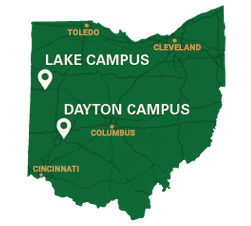
Dayton Campus PrintWright Printers
|
Building |
Room/Floor | Location |
|---|---|---|
| Allyn Hall | Room 255 | Classroom |
| Creative Arts | 2nd Floor | Co-Lab 2 |
| Dunbar Library | Basement | Across from the Help Desk |
| Dunbar Library | 1st Floor | Group Study Room |
| Dunbar Library | 2nd Floor | Educational Resource Center |
| Dunbar Library | 2nd Floor | Information Commons |
| Dunbar Library | 3rd Floor | Book Stacks |
| Dunbar Library | Room 328 | Quiet Study Rooms |
| Dunbar Library | 4th Floor | Archives |
| Hamilton Hall | 1st Floor | Lobby |
| Honors Community | Room 350 | Honors Classrooms |
| Math & Micro | Room 170 | Classroom |
| Math & Micro | Room 270 | Classrooms |
| Millett Hall | Basement | Hallway |
| Millett Hall | Basement | Hallway |
| Millett Hall | 1st Floor | Lounge |
| Millett Hall | Room 303 | Classroom |
| Millett Hall | Room 403 | Classroom |
| Oelman Hall | 2nd Floor | Hallway |
| Rike Hall | Room 064 | Computer Lab |
| Rike Hall | 1st Floor | Lobby |
| Rike Hall | 2nd Floor | Lounge |
| Russ Center | 1st Floor | Computer Labs |
| Russ Center | 2nd Floor | Hallway |
| Russ Center | Room 243 | Computer Lab |
| Russ Center | 3rd Floor | Hallway |
| Russ Center | Room 333 | Computer Lab |
| Russ Center | 4th Floor | Hallway |
| Student Union | Cyber Café | Computer Lab |
| Student Union | Room 023 | Lounge |
| Student Union | Room 190 | Lounge |
| Success Center | Ground Floor | Hallway |
| Success Center | 1st Floor | Tutoring Center |
| Success Center | 2nd Floor | Hallway |
| University Hall | Room 009 | Nursing Lab |
| White Hall | 1st Floor | Hallway |
| White Hall | 2nd Floor | Hallway |
Lake Campus PrintWright Printers
| Building | Room/Floor | Location |
|---|---|---|
| Andrews Hall | 197 | Library |
| Dwyer Hall | 177 | Hallway |
| Dwyer Hall | 219 | Hallway |
| Trenary Lab | 100A | Hallway |