About the CFE
The Center for Faculty Excellence (CFE) is committed to providing resources and programs to support faculty across the three broad areas of faculty work, enabling faculty to develop and implement:
- Innovative teaching and learning strategies across the modalities
- Sustainable research and scholarship plans
- Effective leadership and service profiles
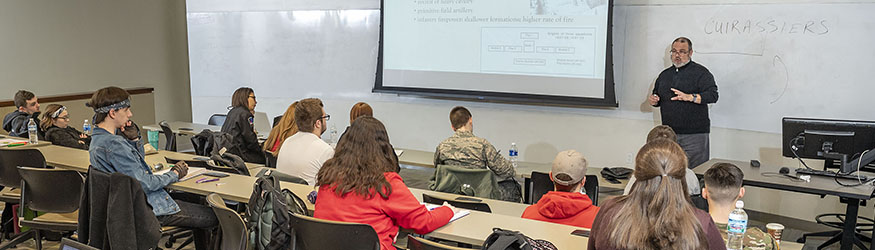
Our goal is to help faculty to thrive and succeed at all stages of their careers by providing resources and support across the full spectrum of faculty work-life. The center offers new faculty orientation, training and workshops for new chairs, competitive teaching enhancement grants, reservable space for faculty writing groups, workshops and individual consultation or referrals on teaching and assessment, building a research or scholarship plan, and developing effective leadership or service profiles. A faculty fellow in pedagogy and a faculty fellow in scholarship offer one-on-one consultation by appointment.
2023-24 Programs and Events
See below for the list of programs and events the CFE has led this academic year.
Faculty Development
- What Is Contract Grading and How Can I Use It for the Benefit of My Students?
- Women Faculty and Staff Rendezvous
- Free Medicare Seminar
- Quality Matters Applying the QM Rubric (APPQMR)
- Student Success and Retention
- Faculty Mentoring Programs
- New Faculty Teaching Community of Practice
- Mental Health Task Force First Aid Training
- Equity Champions Academy
- Course Design Institute (CDI)
- New Faculty Orientation 2023
- Teaching for Student Success Symposium 2023
Chair's Training
Department Chair Retreat, August 20, 2024 from 1:00 p.m. to 4:20 p.m., in 005 Student Success Center
- Welcome and Looking Ahead - Provost Amy Thompson
- Introducing New Faculty Performance Summaries in Watermark - Elissa Falcone, Director, Curricular & Strategic Initiatives & Carol Loranger, VPFA
- Managing Difficult Conversations - Michael Manzler, Associate General Counsel & Emily Hamman, Associate Vice President and Chief Human Resources Officer
- Stretch Break: Movement Activities for Busy Chairs - Beth Hersman, KNH, CEHS
- Hiring and Managing Student Workers - Justy Hagan, Human Resources & Debra Wilburn, Student Employment
- Reflections and Wrap Up - Laura Luehrmann, COLA, Chairs’ Council, Debra Steele-Johnson, COSM, Chairs’ Council, & Thomas Wischgoll, CECS, Chairs’ Council
Directory
Faculty Fellows

Peggy Kelly, M.S.T.
CFE Faculty Affiliate

Sheri Stover, Ph.D.
Provost's Fellows

Dusty Columbia, Ed.D.

Daniel N Warshawsky, Ph.D.
Staff