About the CFE
The Center for Faculty Excellence (CFE) is committed to providing resources and programs to support faculty across the three broad areas of faculty work, enabling faculty to develop and implement:
- Innovative teaching and learning strategies across the modalities
- Sustainable research and scholarship plans
- Effective leadership and service profiles
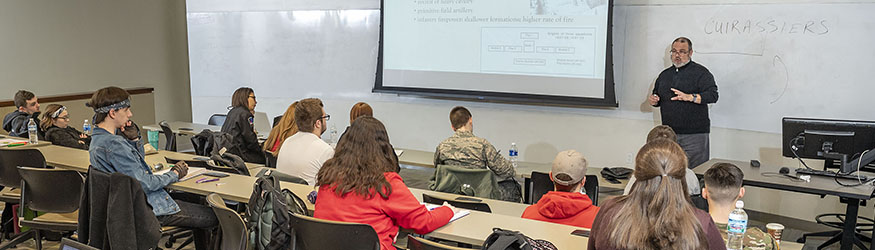
Our goal is to help faculty to thrive and succeed at all stages of their careers by providing resources and support across the full spectrum of faculty work-life. The center offers new faculty orientation, training and workshops for new chairs, competitive teaching enhancement grants, reservable space for faculty writing groups, workshops and individual consultation or referrals on teaching and assessment, building a research or scholarship plan, and developing effective leadership or service profiles. A faculty fellow in pedagogy and a faculty fellow in scholarship offer one-on-one consultation by appointment.
2022-23 Programs and Events
See below for the list of programs and events the CFE has led this academic year.
Faculty Development
- Working With College Students on the Autism Spectrum
- Open Access Publishing vs Predatory Publishers
- AI and the Future of Education
- WSU Faculty Research Symposium
- SelectedWorks: Faculty Profiles that Maximize Scholarly Impact
- Essential Information about Hiring, Supervising and Paying Student Employees
- A Case Study for the Successful Development and Assessment of a University-Wide Academic Recovery Program for First-Year Students
- Setting up Midterm Grading and Grade Reporting in Pilot
- Course Design Institute (CDI)
- Equity Champions Academy
- Using Early low-stakes Assessment for Student Success
- CFE Brown-bag Workshop: Preparing your Professional Development Leave Proposal
- New Faculty Orientation 2022
- Teaching for Student Success Symposium 2022
Chair's Training
- Annual Evaluation Training for Chairs
- Program Assessment Reporting App Training
- Course Student Learning Outcomes vs Course Student Learning Objectives for Curriculum
Directory
Faculty Fellows

Peggy Kelly, M.S.T.
CFE Faculty Affiliate

Sheri Stover, Ph.D.
Provost's Fellows

Dusty Columbia, Ed.D.

S.F. McGinley, M.A., M.Hum.

Daniel N Warshawsky, Ph.D.
Staff